In the previous guide, you learned how to create an article under the section. Well, if you have a lot of sections and articles for your WordPress documentation, then weDocs can help you rearrange them smartly.
By only utilizing the drag-drop system, you can restructure your documentation position.
Here’s the initial view of the current documentation. As you can see, the documentation formation is not synchronized. Now we’ll re-order them. Let’s see how to do it.
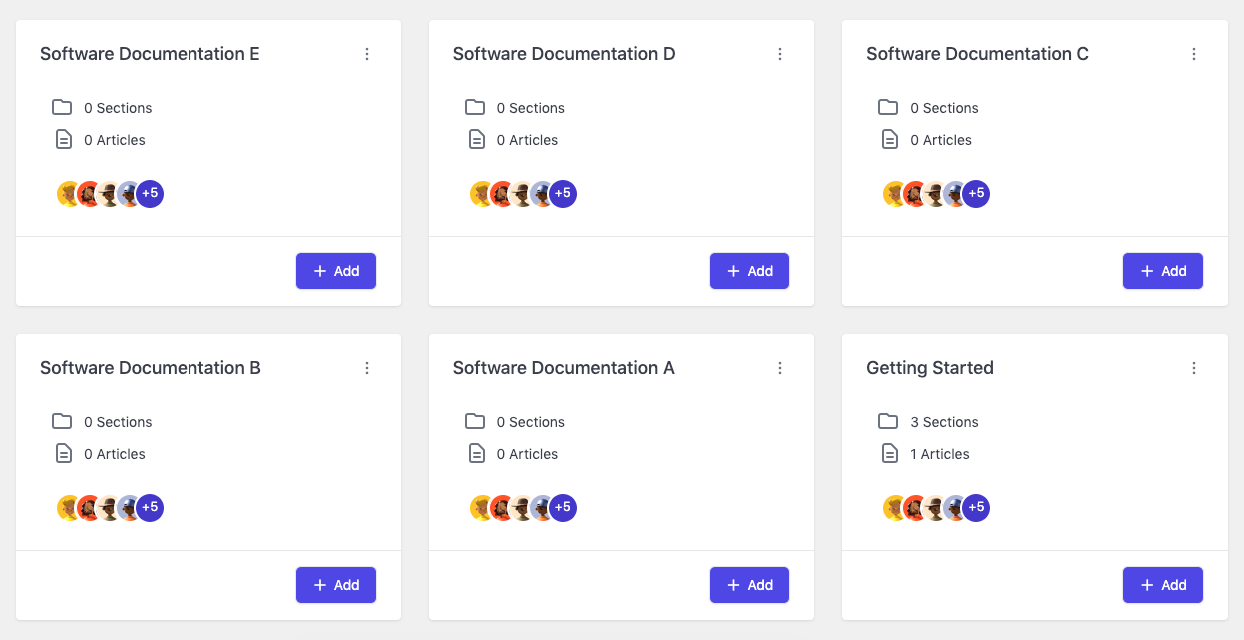
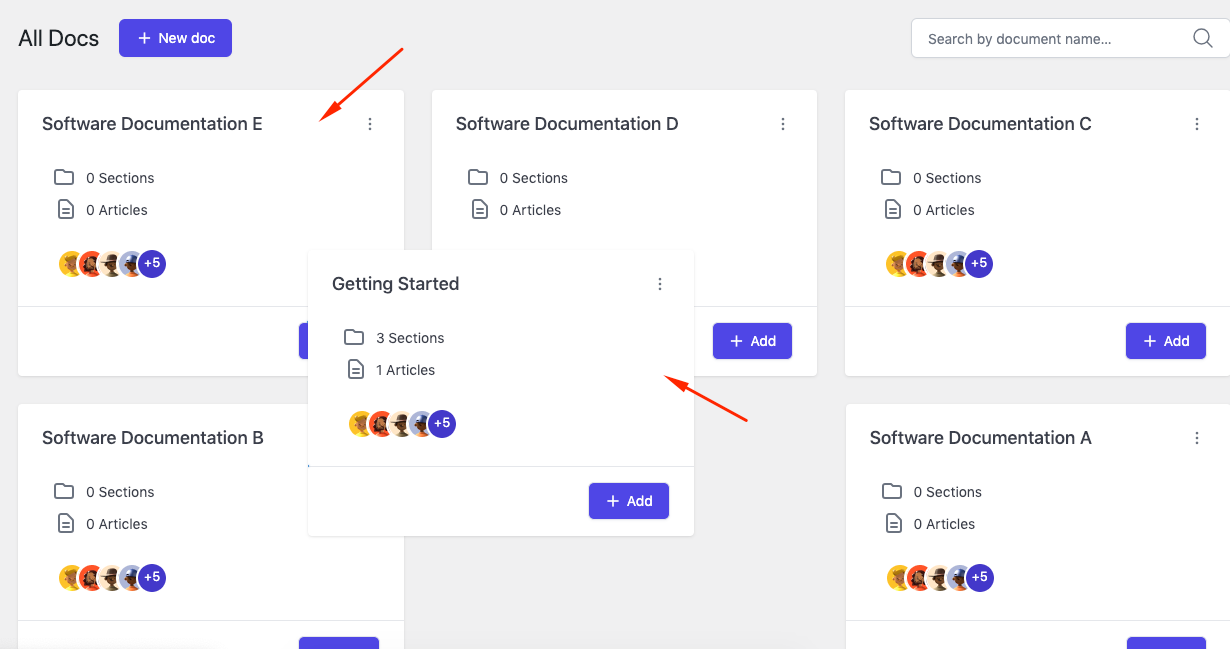
Just click and hold your mouse cursor and drag it to your preferred places.
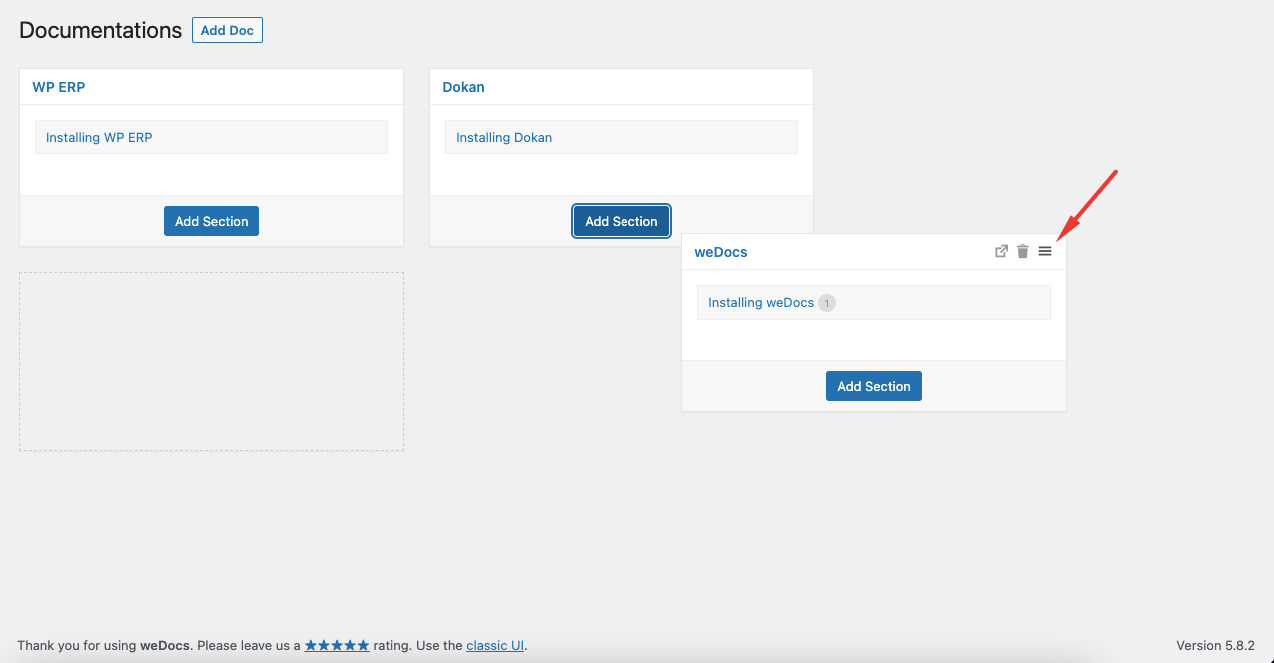
To re-order documentation click and hold the hamburger icon and drag it to your desired location.
Then you will see that the documentation is restructured successfully.
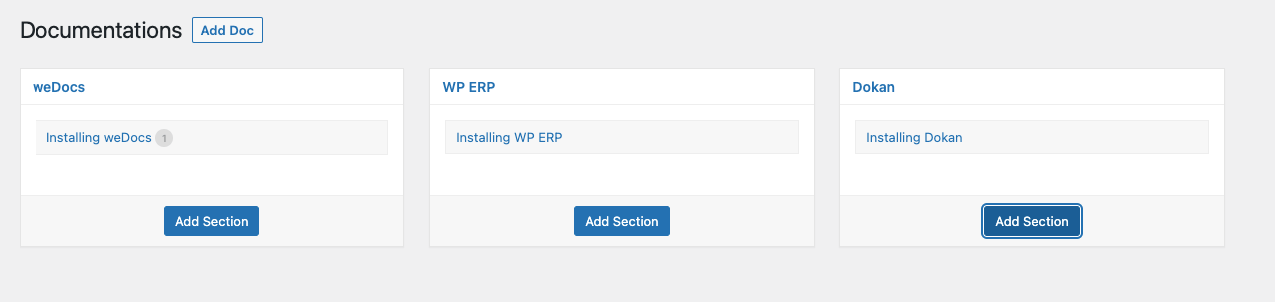
This is how you can easily re-order your documentation structure using the WordPress docs plugin – weDocs